

INSPECT
Welcome back
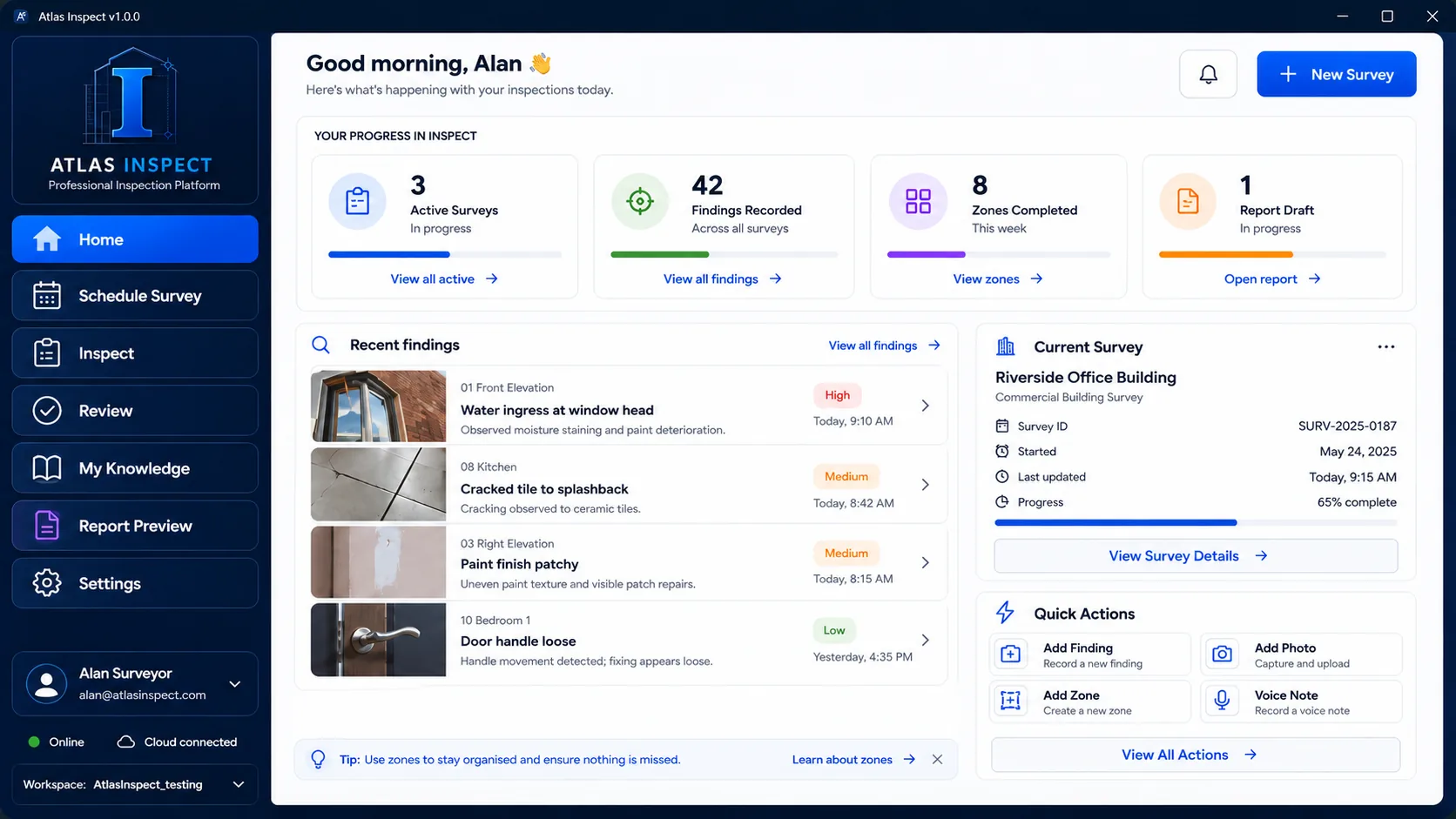
Your surveys, findings and report progress in one place.
RECENT ACTIVITY
Recent Findings
CONTINUE YOUR WORK
Current Survey
SHORTCUTS
Quick Actions
SITE CONDITIONS
Live Weather
—
Select a saved location
Weather updates when the Home dashboard opens.
ALL SAVED LOCATIONS
Google Map
Each pin represents a saved location. Select a location above to centre the map and refresh its weather.
Loading saved locations…
Install Inspect
Install Inspect on this device for a standalone app icon and offline app shell.
My Surveys
0No surveys saved yet
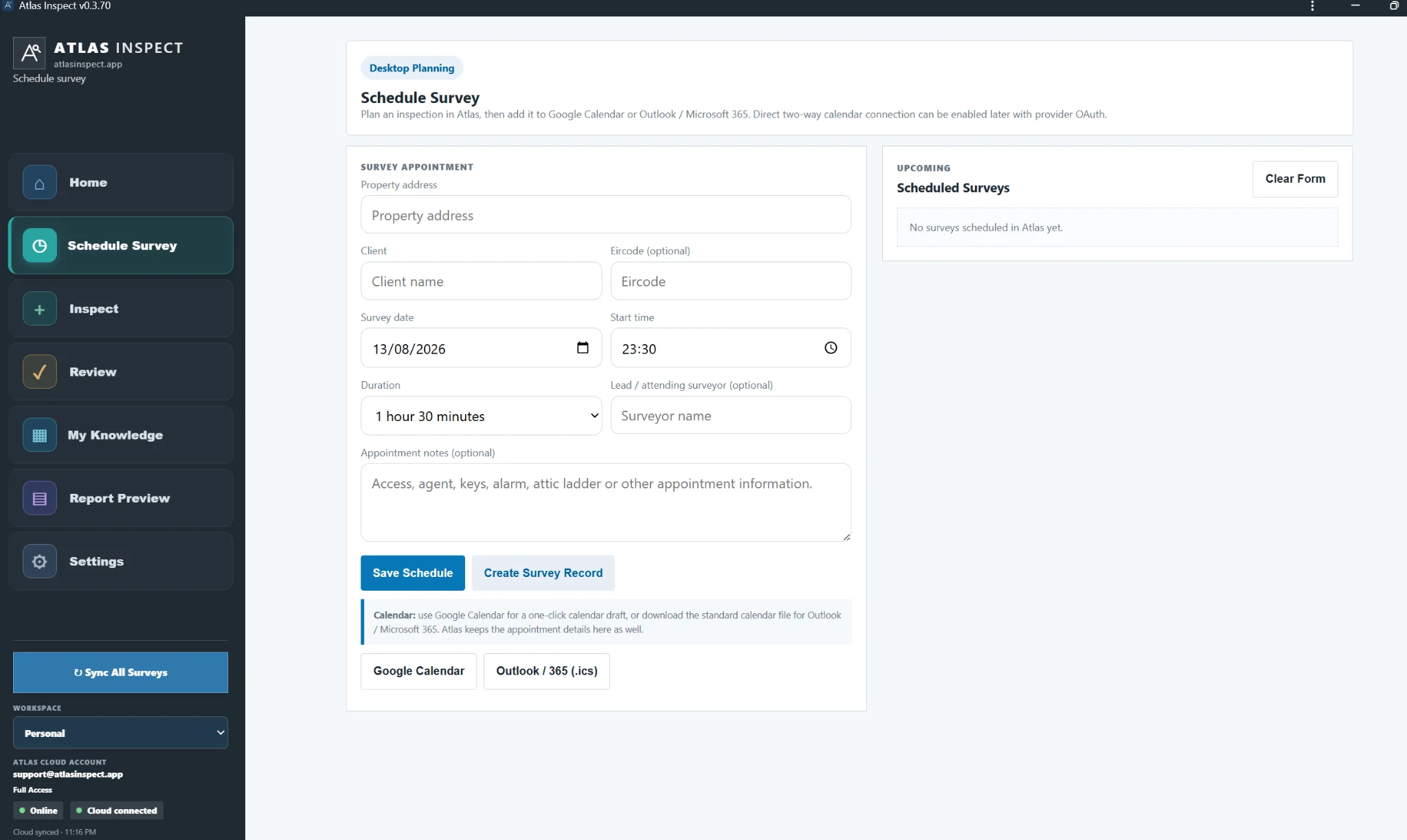
Desktop Planning
Schedule Survey
Plan an inspection in Inspect, then add it to Google Calendar or Outlook / Microsoft 365. Direct two-way calendar connection can be enabled later with provider OAuth.
Survey Appointment
Calendar: use Google Calendar for a one-click calendar draft, or download the standard calendar file for Outlook / Microsoft 365. Inspect keeps the appointment details here as well.
Upcoming
Scheduled Surveys
New Survey
Create the property record and basic inspection context.
Location source: Eircode / address
Pre-inspection setup
✦ Find Property Details Online
Inspect AI can use the property address/Eircode and, where available, a public estate-agent listing URL to search for factual pre-inspection information. Available property details, accommodation and source links are returned for review; missing information is shown as Not found. Always verify imported details against the property and available documentation.
Responsible AI
AI use for this instruction
Inspect AI is optional. Before sending survey information or photographs to an AI provider, confirm that AI use is permitted under your practice procedures and client terms. Where private or confidential information may be uploaded, obtain any required written consent in advance and assess the data risk.
This record supports professional governance but does not replace your firm’s AI policy, risk register, terms of engagement, provider due diligence or training requirements.
Property Overview Photos
Front & Rear Elevations (optional)
Capture these as property overview photographs. They save directly to the survey and do not require observation wording. The front elevation is used on the survey dashboard.
Default is front elevation only. If both is selected and both photos are loaded, the report displays the rear elevation on the right.
Front Elevation
![Front elevation overview]()
No front elevation photo yet
Rear Elevation
![Rear elevation overview]()
No rear elevation photo yet
Survey Profile
Tailor the inspection before you start
Record the broad construction and occupancy profile. Inspect uses this as survey context and keeps it with the inspection record; it does not make a condition or compliance decision.
Pre-inspection information
These fields may be populated from an online listing but remain editable and should be verified by the surveyor.
No online property information applied.
Rooms & Spaces
Suggested layout not yet configured.
Year of construction not available / not confirmed.
Use an exact year only where reasonably supported; otherwise select an approximate construction period.
Weather can affect the visibility of dampness, roof defects, drainage and external ground conditions.
Automatic weather information
Inspect uses the saved address / Eircode or map pin. You can edit this wording after it is filled.
Enter an address / Eircode or use a map pin to populate live weather.
BER not available at time of survey.
Inspection Zones
Add / Edit Zones
Add, rename, duplicate, reorder or remove property-specific rooms and spaces. Each room/space becomes an inspection zone; Inspect keeps the standard external, services and attic zones automatically.
Replace current room layout?
Inspect will replace the current room/space list with a suggested layout for the selected property type.
Property Location
Drop a Pin
Use this when there is no Eircode or the address is difficult to identify.
The map pin is provider-independent. In the hosted prototype Inspect can reverse-look up the address from the selected coordinates; the final app can use Google Maps/Places or another configured geocoding provider.
Tap the map to set the property location.
Address lookup has not run yet.
Before you start
Survey Kit & Access
A fast reminder, not a blocking checklist.
Alarm / accessKeys, codes and access arrangements
Attic accessHatch, ladder and access confirmed
Head torchFlashlight / head torch
PPEDust mask, gloves and suitable footwear
Telescopic ladderWhere safe access requires it
Thermal cameraThermal imaging equipment
Meter box keyServices and meter access
Laser / tape measureDistance and dimensional checks
Property type suggests attic access and external services are likely to be relevant.
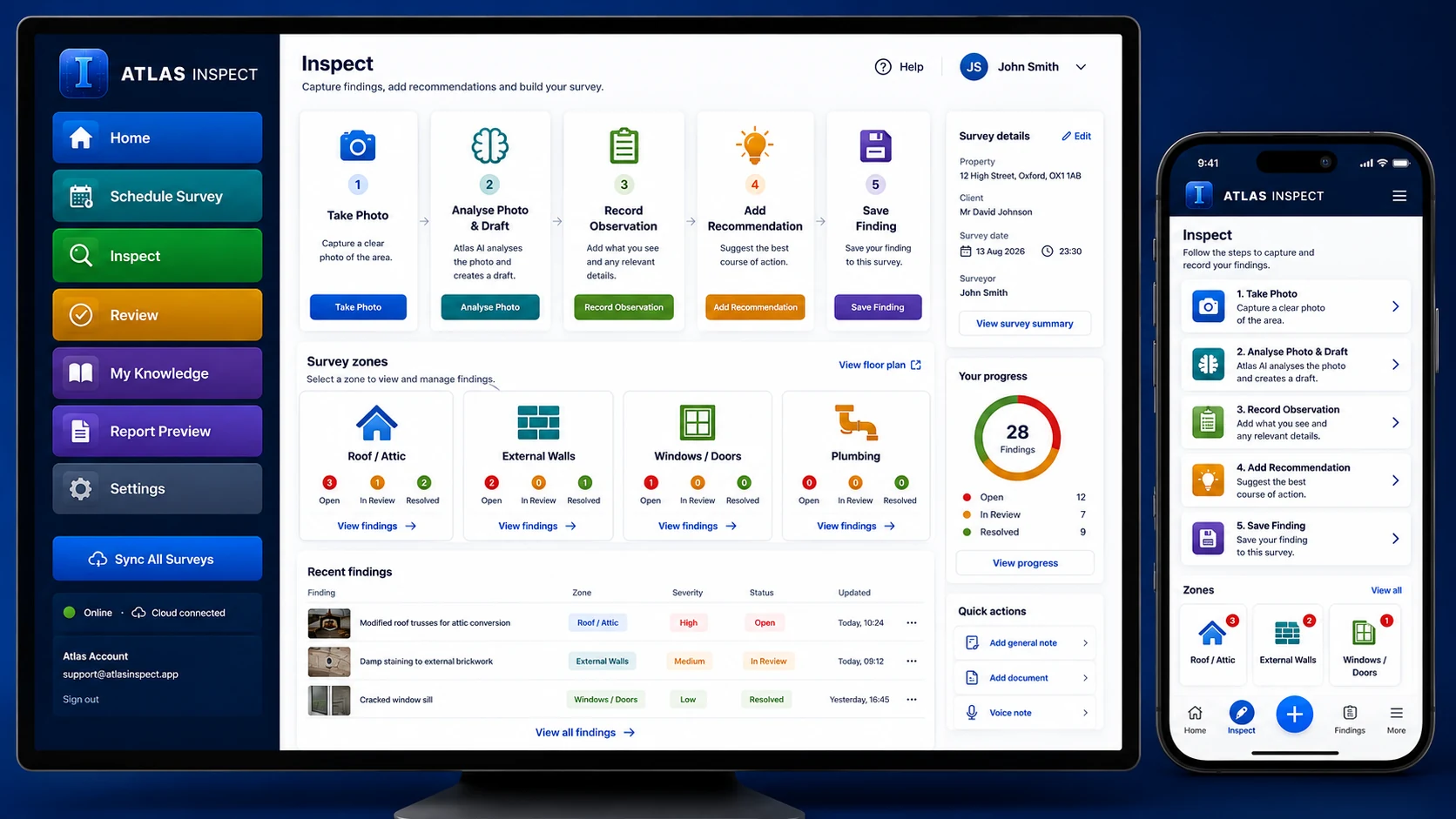
Inspect
Capture findings, add recommendations and build your survey.
Survey zones
Select a zone, review its findings and continue the inspection.
Recent findings
Your latest findings for this survey, including evidence photos.
Zone
Element
0 saved observation(s)
Front Elevation
Record Observation
Select the element and record the evidence.
1 · Add evidence photo
📷 Evidence photo
Take a new site photo or choose an existing image.
No photo selected.
Photo Review & Annotation
Zoom
1.0×
Pan: drag the image when zoomed. Circle: tap the defect. Arrow: drag from the arrow start to the point of interest. The edited view is saved with the finding.
2 · Choose condition rating before AI
Your professional judgement first. Inspect AI uses the rating you choose as drafting context, but it does not assign or change the condition rating.
Confirm the condition rating before saving. Inspect AI does not assign a condition rating from a photograph.
3 · Analyse Photo & DraftInspect uses the photo + your selected condition rating as context.
✦ Inspect AI Assistant
After loading the evidence photo, choose your condition rating above, then run Analyse Photo & Draft. Inspect AI uses the photo and your surveyor-selected rating as context to draft the observation/recommendation and suggest the most appropriate report section and inspection element. The rating remains your professional selection.
Load the photo, choose the condition rating above, then Analyse Photo & Draft. Inspect AI uses both as context but does not assign or change the rating.
AI drafting requires an Inspect Cloud sign-in and internet connection. The surveyor must verify all output.
AI draft — verify before use. Inspect AI may suggest classification to speed up field capture, but the surveyor must confirm the report section, zone and element. Inspect AI does not assign condition ratings, Essential Works, legal/compliance conclusions or definitive causes.
AI visual summary — verify before use. Inspect AI can also suggest the report section, inspection element and distinctive Stairs/Attic zone. Confirm the classification before saving.
AI-polished visual summary — review before use
Choose or accept the Report Section and Inspection Element first. You can edit the summary again in Report Assembly before finalising.
Classify the evidence
1
Report SectionTap the section this evidence belongs under.
2
Inspection ZoneScroll up/down and tap where it was observed.
3
Inspection ElementChoose the element, then record the defect.
These Inspect Knowledge choices are additional to the photo/primary observation. Add as many as required; they will display separately and can be included in the report.
Legacy wording suggestions
Structured wording imported from earlier reports. Review and edit before use.
Use My Knowledge
Saved wording from your personal My Knowledge library, filtered to this section/element where possible.
Photo AI or your own surveyor wording stays here. Additional “What did you observe?” items are kept separately below and can also be appended here if you want one combined paragraph.
Tap Speak to AI, speak naturally, then tap again to stop. Inspect transcribes the recording and drafts editable professional wording for you to review.
Field workflow: Final report editing should be completed in the Desktop version.
AI-polished option — review before use
This wording stays with the finding. In Review you decide whether it is also promoted to Essential Works, Recommendations, or neither summary.
Inspect never decides this automatically. You can change it again in Review on desktop or phone.
Roof Space
Attic / Roof Space
Inspection checklist
Tap the circle to confirm an item has been checked. Use Add where you need to record a defect, photo, rating or recommendation.
📷 Evidence Photos
0
General attic evidence — take a new photo or choose one already on the device.
No attic evidence photos added yet.
All Zones
Tap any zone to jump directly to it.
External
Rooms
Roof / follow-up
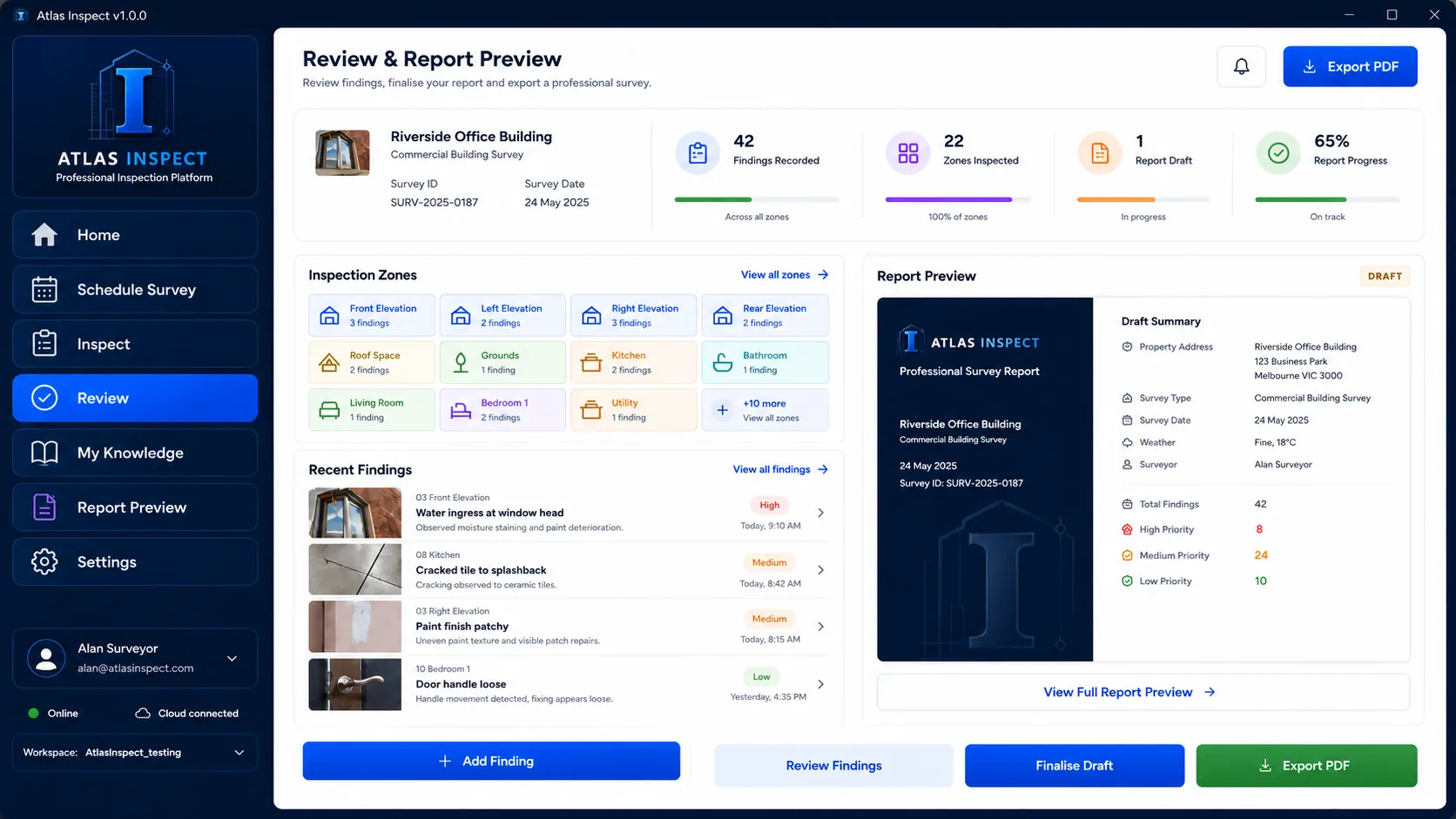
Review
Before leaving the attic, specifically check extract ducts, eaves ventilation and water-tank supports.
Final Review
Before Leaving
Check high-value evidence before ending the inspection.
Survey Details
Address, inspection date, BER, construction year and overview photographs.
Report Readiness
Ready to Issue
One place to see what still needs attention before the report can be finalised.
0%ready
Priority Findings
What needs attention first
Tap a group to filter the findings review below.
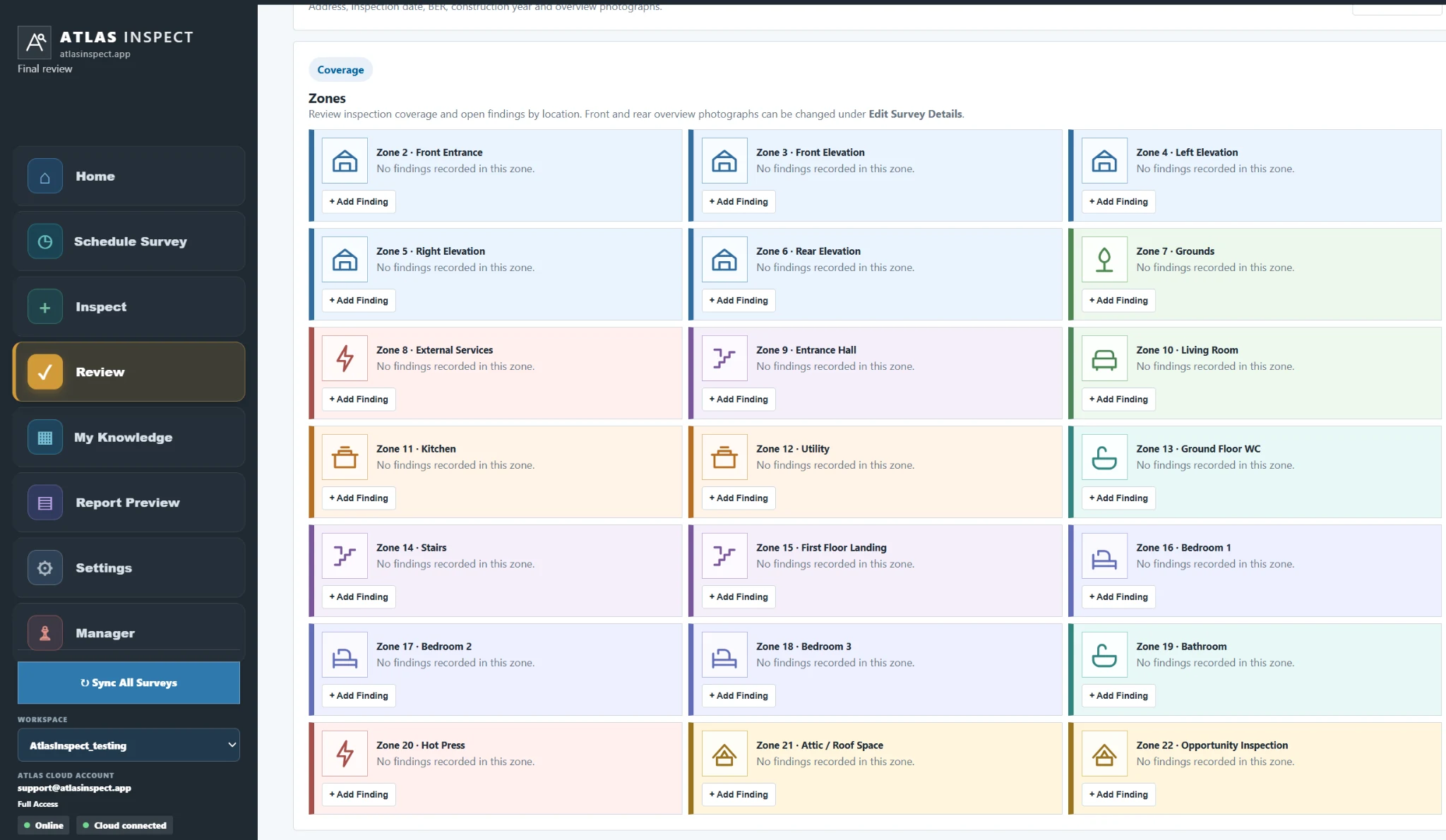
Coverage
Zones
Review inspection coverage and open findings by location. Front and rear overview photographs can be changed under Edit Survey Details.
Findings Review
Edit Findings & Report Summary
Open any completed finding to edit it. Separately choose whether its recommendation is included in Essential Works, Recommendations, or only beneath the finding itself.
Report Assembly
Report Sections & Introductions
Inspection findings are automatically grouped into your report headings. Select or edit the introductory construction/general description for each section before generating the report.
Advisory / Improvements
Additional Recommendations / Improvements
Select future upgrades or improvement comments that are advisable but are not being treated as essential defect repairs.
We recommend that you obtain an indication of the likely cost of the above works from an appropriate specialist before committing to purchase the property.
RICS Level 2 only
0 classified
Risks Editor
Classify only findings that should also be summarised in Section I · Risks of the RICS Level 2 report. These choices do not alter the Professional report.
White-label report
Report Settings
Set your company/surveyor profile once, then override individual reports where needed.
Account & Sync
Inspect Cloud
FIRST CREATE ACCOUNT & ACCEPT TERMS
Use your email address, create a password and accept the current Inspect Terms. Once your Inspect account is ready, install Inspect on this device.
Inspect Cloud connects automatically. Sign in with your Inspect email and password to synchronise your surveys across authorised devices.
Advanced Inspect Cloud configuration
Technical setup only. Normal Inspect users do not need these details.
Admin security: never enter a Supabase secret/service-role key in Inspect. Only browser-safe publishable configuration belongs here.
The acceptance box is required for account creation. Existing and invited users who have not yet accepted the current Terms will be asked once after sign-in.
App & Offline
2. Install Inspect
Checking installation and offline support…
Device Sync
Phone + Desktop Pairing
Pair another phone, tablet or desktop to this private Inspect workspace. Scan the QR on the second device to synchronise the same survey jobs and evidence.
Workspace initialising…
Treat the QR as a private workspace key. Reset it if it is shared accidentally.
2 devices per licence
Manage Devices
Each Inspect licence includes up to 2 active devices. A QR-paired phone or tablet uses one of those two slots.
Sign in as the licence owner to view devices.
Removing a device frees the slot for a replacement. A removed device loses online survey sync, evidence and AI access when it next connects.
AI Assistant · BYO AI
Inspect AI
Google Gemini is recommended. Sign in with your normal Google account, create/copy an API key, then paste it below. OpenAI remains available as an alternative.
Stored only on this device/browser. It is not included in inspection/survey backups or reports. When you use an AI feature, the key and the selected content are sent through the Netlify function to your chosen provider for that request.
AI output is assistive draft content only. Verify every observation, recommendation, classification, measurement and conclusion before use.
Connected knowledge
Inspect Core Database v1.5
Embedded Inspect professional knowledge and field-flow database.
59 inspection elements
217 active defects
13 legacy standard findings
20 imported recommendations
10 advisory improvements
12 report sections
26 intro templates
Raw Legacy Notes Inbox records are retained as source/archive material and are not offered directly as approved survey wording.
Branding & Surveyor
Prototype only: the logo stays in this browser session.
Report identity
Defaults to the surveyor profile but can be changed for an individual survey.
Desktop Report Studio
![Surveyor signature preview]() No signature saved
No signature saved
Electronic Signature
Choose the report style in Report Preview. A saved electronic signature is required before either Professional or RICS Level 2 can be finalised.
New surveys default to Professional. The selected report style is stored with the survey and its live draft is shown in Report Preview on desktop.
This is an electronic signature image for the report. Cryptographic/certificate-based digital signing can be added later if required.
PDF sections
Company logo
Cover/header branding
Surveyor details
Inspected by, qualifications and memberships
Executive summary
Key defects and priority works
Condition rating guide
CR1 / CR2 / CR3 / FI explanation
Photographs
Observation/evidence photographs
Essential works & recommendations
Separate final summary lists controlled from Review
Inspection limitations
Default plus survey-specific limitations
Disclaimer / terms
Default professional disclaimer
Limitations on inspection
Inspect can preselect these from the survey record. The surveyor can edit the final set before issue.
Disclaimer / terms
Default wording should be legally reviewed before commercial release. Each licence holder can have an approved template.
Connected knowledge
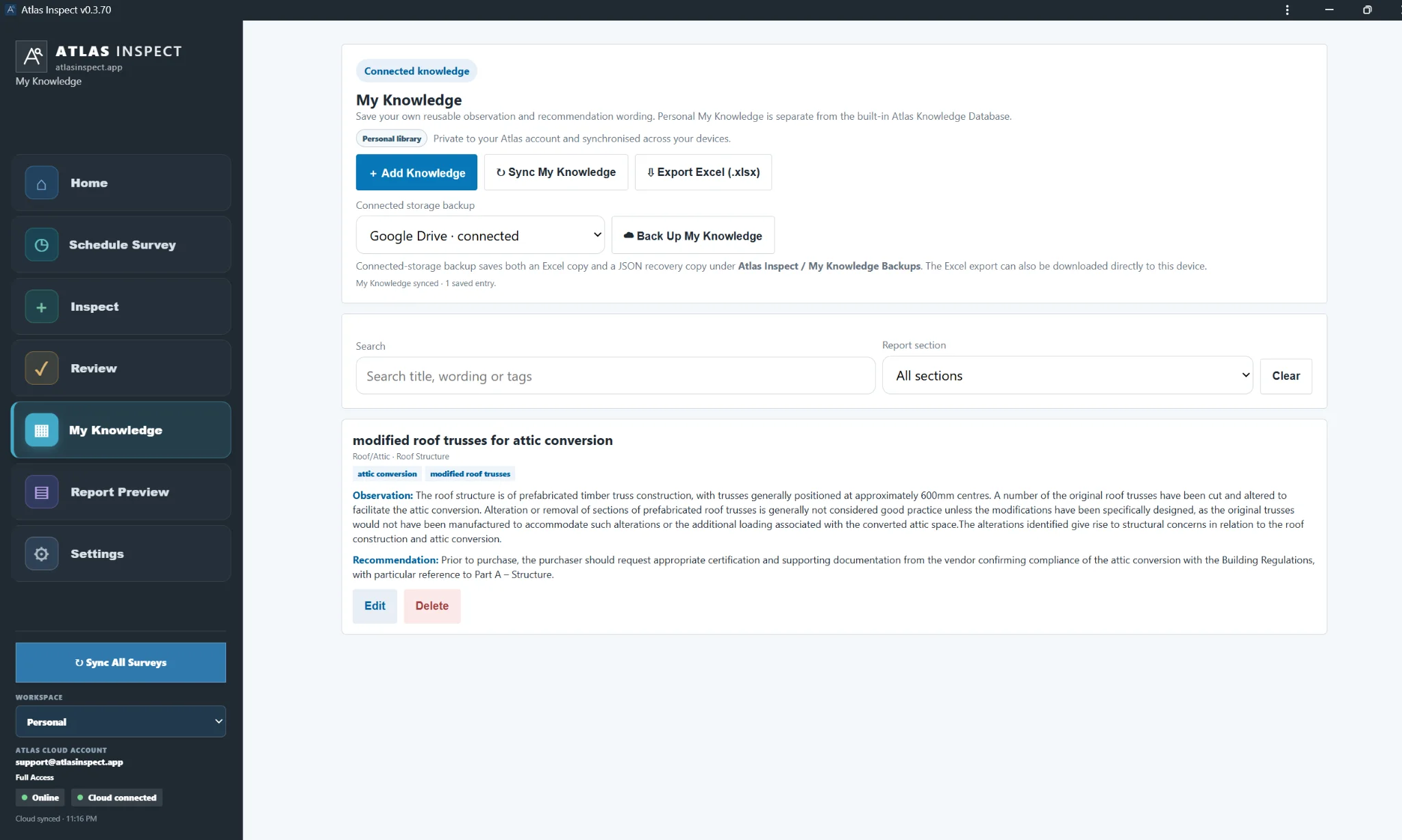
My Knowledge
Save reusable observation and recommendation wording to your personal Inspect knowledge library.
Personal libraryPrivate to your Inspect account and synchronised across your authorised devices.
Knowledge library is available offline on this device.
Add to My Knowledge
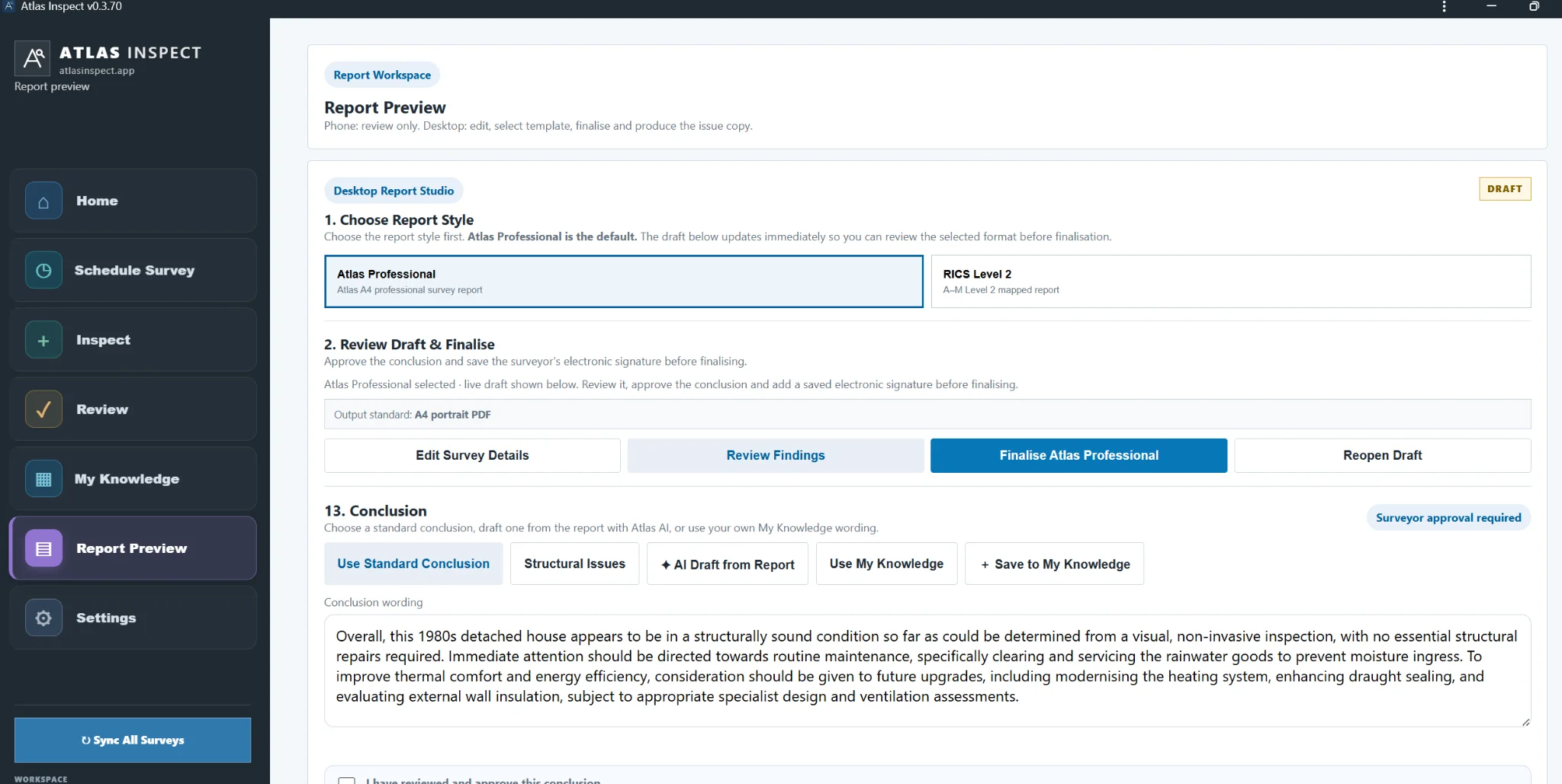
Report Workspace
Report Preview
Phone: review only. Desktop: edit, select template, finalise and produce the issue copy.
Desktop Report Studio
DRAFT
1. Choose Report Style
Choose the report style first. Professional is the default. The draft below updates immediately so you can review the selected format before finalisation.
2. Review Draft & Finalise
Approve the conclusion and save the surveyor's electronic signature before finalising.
Professional selected · live draft shown below.
Output standard: A4 portrait PDF
13. Conclusion
Surveyor approval requiredChoose a standard conclusion, draft one from the report with Inspect AI, or use your own My Knowledge wording.
My Knowledge · Conclusions
Responsible AI Review Record
No AI appliedIf AI-derived information or wording has been applied to this survey, record the professional review before final issue. Inspect stores this record with the survey; it is not added to the client report unless you choose to reproduce it separately.
Phone preview: Professional only. Final report type selection, RICS Level 2 generation, signature and issue controls remain desktop-first.
Example Building Surveying Ltd
Pre-Purchase Building Survey
Property address
Residential property inspection report
Front Elevation
Report Navigation
Contents
Page numbers are calculated against the A4 PDF layout and update when the report changes.
Surveyor Details
Example Surveyor
CABE · CIOB · Registered Building Surveyor
surveyor@example.com
Condition Rating Guide
CR1 — no repair currently required.
CR2 — repair or maintenance required but not normally urgent or serious.
CR3 — serious defect requiring urgent repair, replacement or specialist attention.
FI — further investigation required before a firm conclusion can be reached.
Essential Works
Recommendations
Additional Recommendations / Improvements
Disclaimer / Terms
Surveyor Sign-Off
Surveyor